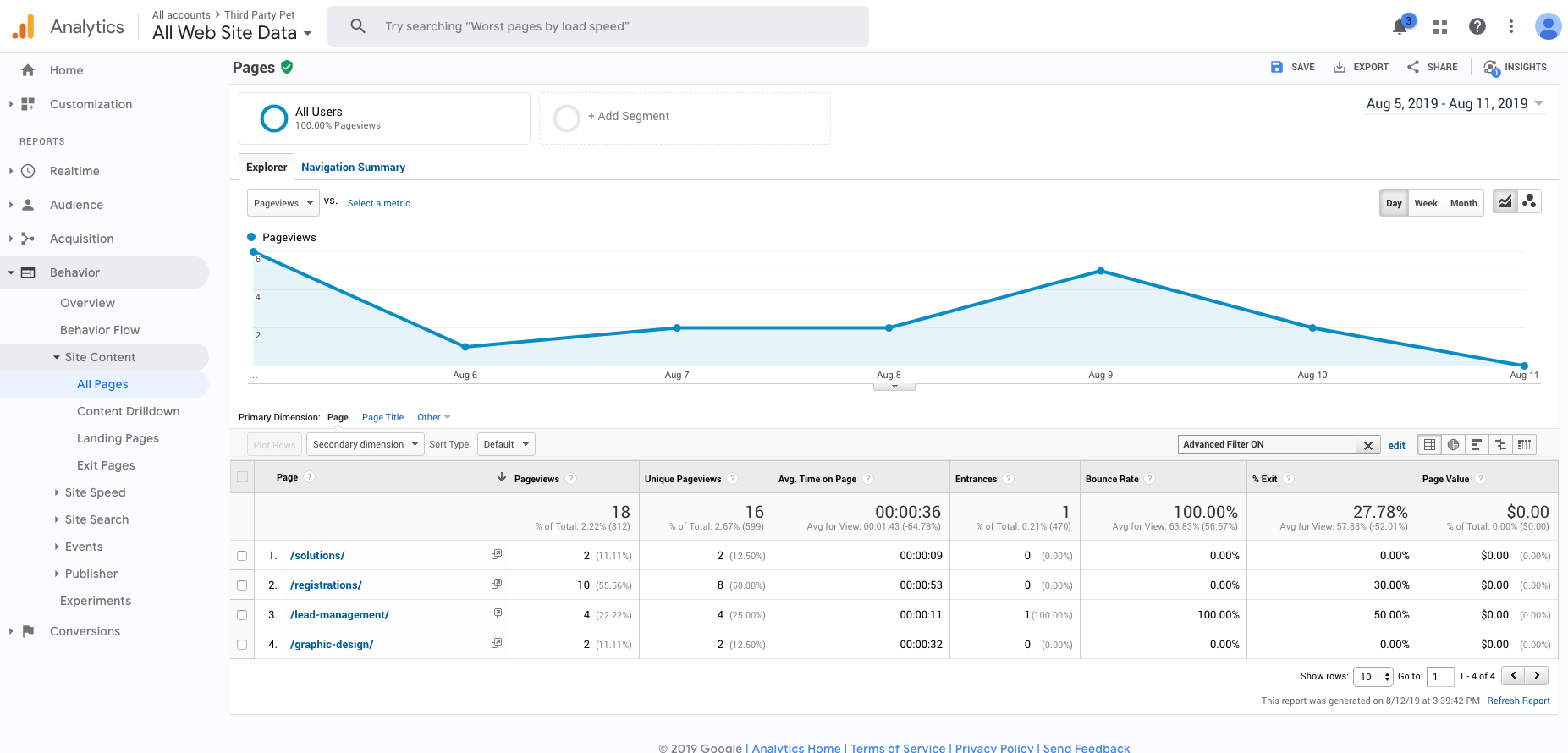
This is a tutorial on how you would filter out page views and send the report to the client.
- Login to the client’s GA account
- Click on Behavior > Site Content > All Pages
- You will have to set up the filter, so go to Edit next to filter
- Follow the image below and make sure you are using Match RegExp since we are filtering multiple pages at a time for the report to show
- In the text box, you will put the ending URL and the | in between the pages. Example: /solutions|/lead-management|/registrations|graphic-design
- Below are images to reference from:
- Setting Up Filtering:
- What report should look like after filter has been applied:
- Setting Up Filtering:
- To share a report- make sure you ask the client of the date range they would like to see the report.
- Click on Share > Add all the emails that should receive the report
- Update the subject line of what the report is about
- Set up the Frequency of how many times they would want to receive the report
- Here is what you will see to setup: