- Go to vr181
- Hover over Infusionsoft icon and click on Campaign Builder under Marketing
- Click FIGO Sequence (ID 1180)
- Add tag of the pack name (Wait For FIGO Tag)
- Right click on a sequence
- Duplicate it
- Make it active
- Rename the sequence to follow the new pack name
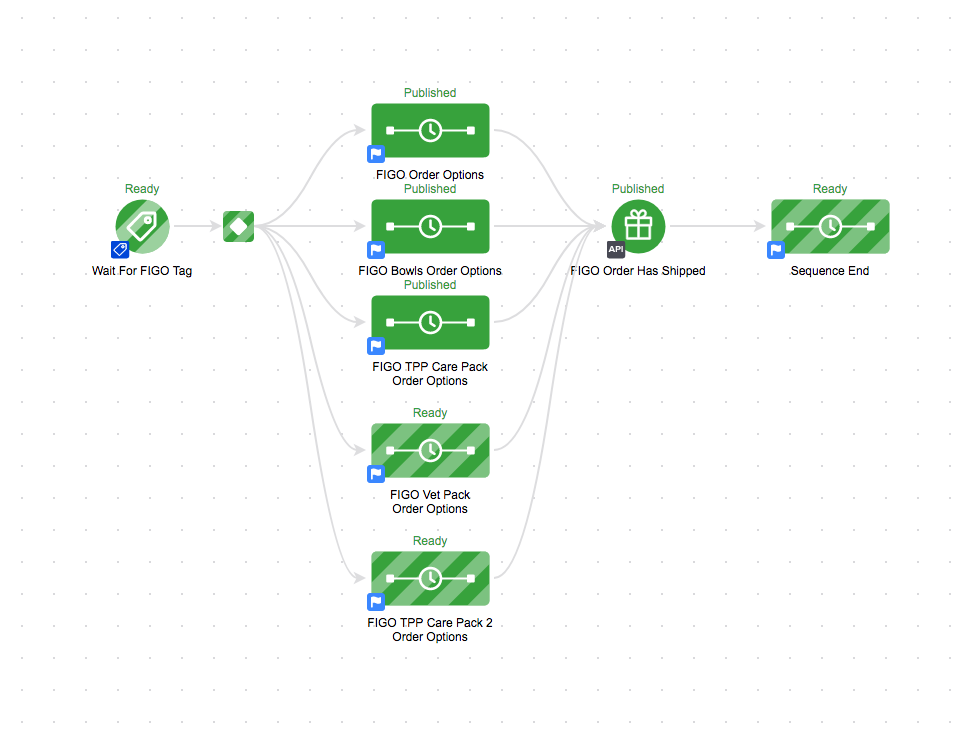
- Connect the sequence to the Decision Diamond and API goal
- Click on the Decision Diamond
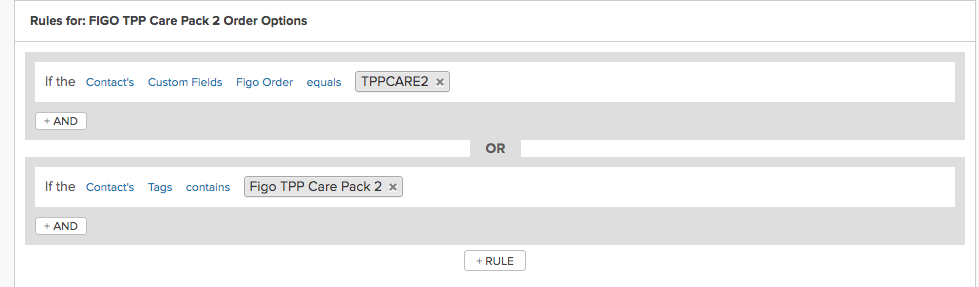
- Add the RULE under the new pack you created
- Tag or Custom Field
- Make everything inside the sequence active
- Make edits to:
- Create Order (You will have to create the Action Set- see step 10)
- Set Weight (update the weight of the pack) – Ask Tammy/Skyler if they didn’t provide it
- Make sure to ask Tammy/Skyler if the Carrier is correct
- Set Order Status to Figo Active
- Confirm with Bteam that Figo order is sent to reporting correctly
- Give the Bteam the tag and custom field value of the pack
- Hover over Infusionsoft icon and click Settings under CRM
- Click Action Sets
- Click Add an Action Set button
- Set the new name of the Action Set
- Under Add New Action – Copy From Existing from previous pack
- Click Copy These actions
- Click Edit
- Remove all products
- Add Product Names that Tammy/Skyler provides
- Edit QTY
- Update Discount % to 100
- After you add all the products and update the quantity, click Save

- After everything has been confirmed by TPP and Bteam- Publish FIGO Sequence.